



Comprehensive FDM 3D Printing FAQ: The Definitive Guide for Beginners & Advanced Users


Fused Deposition Modeling (FDM) — also widely referred to as Fused Filament Fabrication (FFF) — is the most accessible, cost-effective, and widely adopted additive manufacturing technology worldwide. From hobbyist desktop printers to industrial-grade production systems, FDM 3D printing powers rapid prototyping, custom tooling, end-use parts, educational projects, and creative design across countless industries. This exhaustive FAQ addresses every critical question, from foundational concepts to advanced troubleshooting, parameter tuning, and design best practices, with detailed, actionable answers to help you master FDM 3D printing and achieve consistent, high-quality results.
Part 1: Basic FDM 3D Printing Fundamentals
1.1 What is FDM 3D Printing, and how does it differ from other 3D printing technologies?
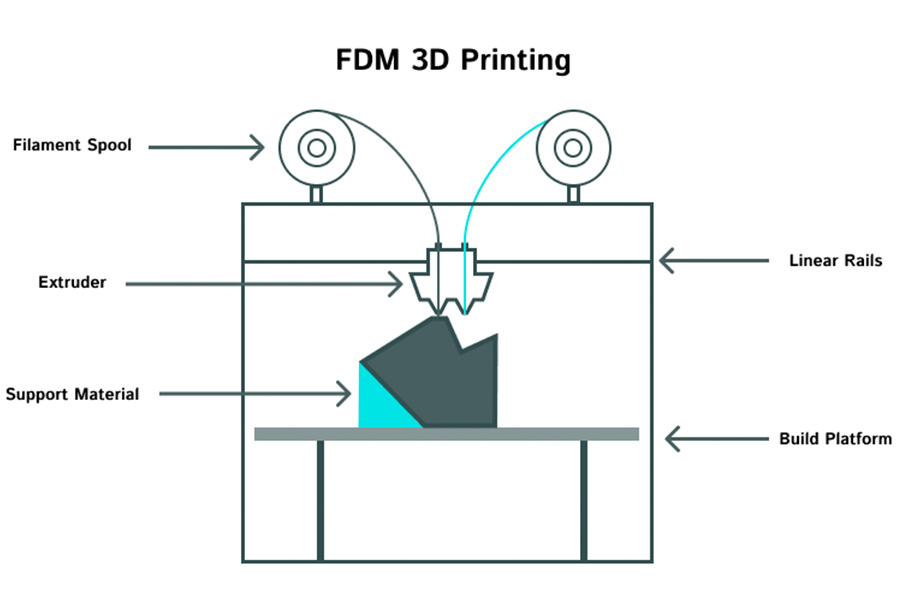
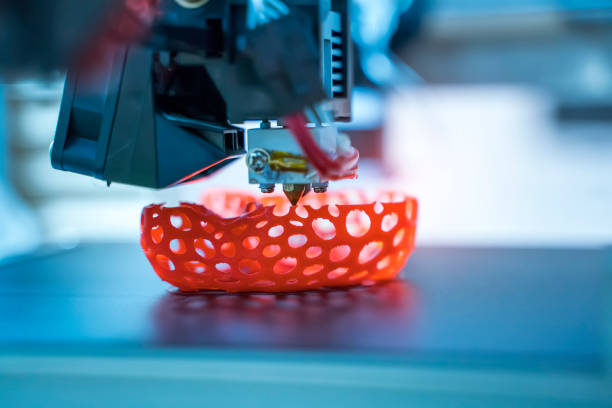
FDM (Fused Deposition Modeling) is an additive manufacturing process that builds three-dimensional objects layer by layer by extruding molten thermoplastic filament through a heated nozzle. The filament is fed from a spool into a heated hot end, melted to a semi-liquid state, and deposited precisely along a pre-programmed toolpath onto a build platform. As each layer cools and solidifies, it bonds to the previous layer, gradually forming the final 3D part.
FDM is often confused with FFF (Fused Filament Fabrication) — these terms are nearly interchangeable. FDM is a trademarked term by Stratasys, while FFF is the open-source equivalent used for desktop and hobbyist printers. The core mechanical and material extrusion process is identical for both.
Key differences between FDM and other mainstream 3D printing technologies:
• SLA (Stereolithography): Uses UV-curable resin and a laser to solidify layers; delivers smoother surface finishes and finer details but uses more expensive, toxic materials and requires extensive post-processing.
• SLS (Selective Laser Sintering): Uses a laser to sinter polymer powder; creates strong, nearly isotropic parts without supports but has high machine and material costs and limited color options.
• MJF (Multi Jet Fusion): Uses a fusing agent and infrared energy to bond powder; faster than SLS with better consistency but restricted to specific materials and industrial systems.
FDM stands out for its low barrier to entry, wide material variety, minimal waste, ease of use, and ability to print large, functional parts with standard thermoplastics. It is the ideal starting point for anyone new to 3D printing.
1.2 What are the core components of an FDM 3D printer?
Every FDM 3D printer relies on a set of critical hardware components working in sync. Understanding these parts is essential for operation, maintenance, and troubleshooting:
• Filament Spool & Holder: Stores the thermoplastic filament; ensures smooth, tangle-free feeding into the extruder.
• Extruder (Feeder System): The mechanical assembly that pushes filament into the hot end. Direct drive extruders mount the motor near the hot end for better retraction and flexible filament compatibility; Bowden extruders use a remote motor and PTFE tube, reducing weight on the print head for faster movement.
• Hot End Assembly: Includes the heating block, nozzle, thermistor (temperature sensor), and heat break. Melts the filament and controls extrusion temperature precisely.
• Nozzle: The small, precision-machined tip that deposits molten filament; standard diameters are 0.4mm (general use), 0.25mm (fine details), and 0.6–1.0mm (fast, large prints).
• Build Platform (Bed): The surface where the first layer is printed; can be heated (for ABS, PETG) or unheated (for PLA). Common bed materials: glass, PEI sheet, BuildTak, and magnetic flexible plates.
• Motion System: Consists of stepper motors, belts, pulleys, and linear rails/rods that control X/Y/Z axis movement for precise layer deposition.
• Mainboard (Controller Board): The “brain” of the printer; processes G-code (sliced instructions) and controls all mechanical and thermal components.
• Display & Interface: Physical screen or touchpanel for manual printer control, bed leveling, and print monitoring; many modern printers also offer Wi-Fi/cloud connectivity.
• Part Cooling Fan: Blows air onto the printed part to accelerate cooling, prevent warping, and improve overhang/bridge quality (disabled for high-temperature materials like ABS).
• Enclosure (Optional): A protective housing that traps heat, stabilizes ambient temperature, and eliminates drafts — critical for printing engineering-grade materials like ABS, Nylon, and PC.
1.3 What is the complete FDM 3D printing workflow, step by step?
Successful FDM printing follows a standardized, repeatable workflow that combines digital design, software preparation, machine setup, and post-processing:
1. 3D Model Creation: Design a part using CAD software (SolidWorks, Fusion 360, Tinkercad) or download a pre-made model from repositories like Thingiverse, Printables, or MyMiniFactory. Export the model in a printable format (STL, 3MF, OBJ — STL is the most universal).
2. Slicing: Import the 3D model into slicing software (Cura, PrusaSlicer, Bambu Studio, Simplify3D). The slicer converts the 3D geometry into thin horizontal layers and generates G-code (machine-readable instructions) with customized parameters (layer height, infill, speed, temperature, supports).
3. Printer Setup: Load the selected filament, level the build platform (manual or auto-leveling), clean the nozzle and bed, and preheat the hot end and bed to material-specific temperatures.
4. Print Initiation: Transfer the G-code to the printer (via USB, SD card, Wi-Fi, or cloud) and start the print. Monitor the first layer closely — it is the most critical step for bed adhesion.
5. Print Monitoring & Maintenance: Oversee the print progress, check for filament jams, layer shifting, or adhesion issues, and intervene if problems arise.
6. Post-Processing: Once printing finishes, remove the part from the bed, detach support structures, clean up stringing/blobs, and perform finishing steps (sanding, painting, annealing, etc.).
1.4 What skills do I need to start FDM 3D printing?
You don’t need advanced technical skills to begin FDM 3D printing — beginners can achieve great results with basic patience and willingness to learn. Core foundational skills include:
• Basic computer literacy to navigate slicing software and transfer files to the printer.
• Attention to detail for bed leveling, filament loading, and first-layer calibration.
• Problem-solving mindset to troubleshoot common issues (warping, stringing, jams).
• Basic manual dexterity for simple maintenance (nozzle cleaning, belt tensioning).
Advanced users can develop CAD design skills, advanced slicing parameter tuning, and material-specific expertise, but these are not required for getting started. Modern printers with auto-leveling, filament sensors, and preset slicer profiles have drastically lowered the learning curve for beginners.
Part 2: FDM 3D Printer Selection & Setup
2.1 How do I choose the right FDM 3D printer for my needs?
Selecting an FDM printer depends on yourbudget, use case, print size requirements, and skill level. Below is a breakdown of key considerations to guide your choice:
Budget Tiers
• Entry-Level ($100–$500): Hobbyist desktop printers (Ender 3 V2, Anycubic Kobra Go); ideal for beginners, small prototypes, and decorative parts. Limited build volume, basic features, and may require minor assembly/tuning.
• Mid-Range ($500–$1500): Upgraded hobbyist/prosumer printers (Prusa MK4, Bambu Lab P1P, Creality K1); offer auto-leveling, direct drive extruders, enclosed frames, and faster print speeds. Great for functional parts, frequent printing, and reliable results.
• Industrial/Professional ($1500+): High-end systems (Prusa XL, Stratasys F123 Series, Raise3D Pro2); large build volumes, dual extrusion, high-temperature capabilities, and industrial-grade reliability. Designed for production, engineering-grade materials, and end-use parts.
Key Features to Prioritize
• Build Volume: Match the print bed size (X/Y/Z) to your typical part dimensions — common sizes are 220x220x250mm (entry-level) and 300x300x300mm+ (prosumer/industrial).
• Extruder Type: Direct drive for flexible filaments (TPU) and better retraction; Bowden for faster, lighter print heads.
• Bed Leveling: Auto-leveling (BLTouch, CR Touch) saves time and improves consistency — avoid manual-only leveling for frequent use.
• Heated Bed & Enclosure: Mandatory for ABS, Nylon, and PETG; highly recommended to prevent warping.
• Filament Compatibility: Ensure the printer supports your desired materials (PLA, PETG, ABS, TPU, Nylon).
• Connectivity: SD card, USB, Wi-Fi, and cloud printing for convenience.
2.2 What initial setup steps are mandatory for a new FDM printer?
A new FDM printer requires critical calibration and setup to avoid failed prints and ensure longevity. Follow these non-negotiable steps:
1. Mechanical Assembly & Inspection: Tighten all screws, check belt tension (not too loose or tight), and ensure linear rails/rods move smoothly without binding.
2. Bed Leveling & Z-Offset Calibration: Level the bed to ensure the nozzle is evenly spaced across the entire build surface. Calibrate the Z-offset (distance between nozzle and bed) for perfect first-layer adhesion — too close causes squished lines, too far causes poor bonding.
3. Temperature Calibration: Verify hot end and bed temperature accuracy with a thermal thermometer; incorrect temperatures lead to jams, poor layer bonding, and warping.
4. Extruder Calibration (E-Steps): Calibrate the amount of filament extruded to ensure accurate flow rate — under-extrusion causes gaps, over-extrusion causes blobs and stringing.
5. First-Layer Test Print: Print a simple calibration test (single layer square, calibration cube) to fine-tune bed adhesion, Z-offset, and flow before printing real parts.
6. Firmware Update: Install the latest manufacturer firmware to fix bugs, add features, and improve stability.
2.3 Should I use an enclosed or open-frame FDM printer?
The choice between enclosed and open-frame printers depends entirely on thematerials you plan to print:
• Open-Frame Printers: Best for PLA only. PLA prints at low temperatures (190–210°C) and doesn’t require controlled ambient heat; open frames improve cooling and reduce cost. However, they cause severe warping and layer separation for high-temperature materials (ABS, Nylon, PC).
• Enclosed Printers: Mandatory for ABS, ASA, Nylon, PC, and other engineering-grade materials. The enclosure traps heat, maintains a consistent ambient temperature, and blocks drafts, eliminating warping and improving layer adhesion. Enclosures also reduce fume emissions (important for high-temp materials) and improve print stability.
Many open-frame printers can be retrofitted with aftermarket enclosures (acrylic panels, fabric covers) to add high-temperature material compatibility on a budget.
2.4 What accessories are essential for FDM 3D printing?
These accessories will drastically improve print quality, reduce failures, and simplify maintenance — they are worth investing in alongside your printer:
• Bed Adhesion Aids: PEI spring steel sheets, BuildTak, hairspray, glue stick, or Magigoo (prevents warping and aids part removal).
• Calibration Tools: Calibration cubes, retraction test prints, temperature towers, and feeler gauges for Z-offset.
• Maintenance Tools: Needle-nose pliers, wire cutters, nozzle cleaning needles, brass brushes, and lubricant (for linear rails).
• Filament Storage: Dry boxes with desiccant (absorbs moisture from hygroscopic materials like Nylon and PETG).
• Safety Gear: Fume extractor (for high-temp materials), heat-resistant gloves, and fire extinguisher (safety precaution).
• Spare Parts: Extra nozzles (0.4mm), PTFE tubing, belts, and thermistors (minimizes downtime).
Part 3: FDM 3D Printing Filaments (Materials)
3.1 What are the most common FDM filaments, and what are their best uses?
FDM supports a massive range of thermoplastic filaments, each with unique mechanical properties, temperature requirements, and applications. Below is a detailed breakdown of the most popular options:
PLA (Polylactic Acid)
Temperature: Hot end 190–210°C, bed 50–60°C (no heated bed required)
Properties: Biodegradable (plant-based), low shrinkage, easy to print, vibrant colors, minimal warping. Brittle, low heat resistance (softens above 50°C), not water-resistant long-term.
Best For: Beginners, prototypes, decorative parts, educational models, cosplay props, and low-stress components. Not for functional parts exposed to heat or moisture.
PETG (Polyethylene Terephthalate Glycol)
Temperature: Hot end 230–250°C, bed 70–80°C
Properties: Durable, flexible, impact-resistant, food-safe (when printed correctly), water-resistant, minimal warping. Slightly stringy, requires moderate cooling.
Best For: Functional parts, containers, mechanical components, outdoor parts (moderate UV resistance), and beginner-friendly functional prints. The most versatile all-around filament.
ABS (Acrylonitrile Butadiene Styrene)
Temperature: Hot end 240–260°C, bed 90–110°C
Properties: Tough, impact-resistant, heat-resistant (up to 90°C), sandable/paintable. High shrinkage, severe warping (requires enclosure), emits fumes during printing.
Best For: Functional parts, mechanical components, Lego-compatible parts, and outdoor use (with enclosure). Not recommended for beginners without an enclosure.
ASA (Acrylonitrile Styrene Acrylate)
Temperature: Hot end 240–260°C, bed 90–110°C
Properties: UV-resistant, weatherproof, impact-resistant, same toughness as ABS with minimal warping (compared to ABS). Requires enclosure and ventilation.
Best For: Outdoor parts, automotive components, garden fixtures, and long-term outdoor use — superior to ABS for outdoor applications.
TPU/TPE (Thermoplastic Polyurethane/Elastomer)
Temperature: Hot end 220–240°C, bed 50–70°C
Properties: Flexible, rubber-like, shock-absorbent, durable. Requires direct drive extruder (Bowden extruders cause jams), slow print speeds.
Best For: Watch bands, gaskets, wheels, flexible hinges, shock absorbers, and soft prosthetics.
Nylon (PA, Polyamide)
Temperature: Hot end 240–270°C, bed 80–100°C
Properties: Extremely strong, flexible, wear-resistant, chemical-resistant. Hygroscopic (absorbs moisture quickly, causes bubbles/jams), requires enclosure and dry storage.
Best For: Gears, bearings, tool handles, industrial components, and high-stress functional parts.
Composite Filaments (Carbon Fiber, Glass Fiber, Wood, Metal)
Infused with additives to enhance properties: carbon fiber for stiffness/strength, wood for textured finishes, metal (copper/aluminum) for metallic aesthetics. Require hardened steel nozzles (abrasive additives wear standard brass nozzles).
3.2 What does “hygroscopic filament” mean, and why does it matter?
Hygroscopic filaments absorb moisture from the air over time. Common hygroscopic materials include Nylon, PETG, TPU, and composite filaments. Moisture contamination causes severe printing issues:
• Popping/bubbling during extrusion (moisture turns to steam in the hot end)
• Surface imperfections, voids, and weak layer bonding
• Filament jams and clogged nozzles
• Brittle, low-strength parts
Solutions: Store hygroscopic filaments in a sealed dry box with desiccant; dry wet filament in a filament dryer (40–60°C for 4–12 hours) before printing. PLA is non-hygroscopic but still benefits from dry storage to prevent dust buildup.
3.3 How do I store FDM filaments properly?
Proper filament storage preserves quality, prevents moisture damage, and extends shelf life:
• General Storage: Keep filaments in sealed, airtight containers away from direct sunlight, heat, and humidity.
• Hygroscopic Filaments: Use a heated filament dry box with desiccant packs; replace desiccant regularly (recharge in oven when saturated).
• PLA Storage: Store in a cool, dry place — avoid high humidity to prevent mold/dust buildup.
• Shelf Life: Most filaments last 6–12 months in proper storage; PLA can last 2+ years, while Nylon/TPU should be used within 6 months for best results.
3.4 Can I mix different filaments in one print?
Single-extruder printers cannot mix different filaments mid-print (requires manual filament change, which is impractical). Dual-extruder printers support multi-material printing:
• Print parts with two colors or two materials (e.g., rigid PETG + flexible TPU).
• Print soluble supports (PVA/HIPS) that dissolve in water, leaving clean surfaces.
Mixing incompatible materials (e.g., PLA + ABS) is not recommended, as they have different temperature and cooling requirements and will not bond properly.
Part 4: Slicing Software & Parameter Tuning
4.1 What is slicing software, and which programs are best for FDM?
Slicing software converts 3D models into G-code (the numerical control language that guides the printer’s movements and extrusion). It allows full customization of print parameters to optimize quality, speed, and strength. Top FDM slicers include:
• Ultimaker Cura: Free, open-source, most widely used slicer; compatible with all FDM printers, endless customization, and preset profiles for beginners.
• PrusaSlicer: Free, optimized for Prusa printers (works with all brands); advanced parameter control, excellent support generation, and multi-material support.
• Bambu Studio: Free, designed for Bambu Lab printers (universal compatibility); AI-powered tuning, cloud integration, and fast slicing.
• Simplify3D: Paid premium slicer; advanced control, multi-part optimization, and reliable support generation (ideal for advanced users).
4.2 What are the most critical slicing parameters, and how do I tune them?
Mastering these core parameters is the key to perfect FDM prints — start with manufacturer presets, then fine-tune for your material and part:
Layer Height
Defines the thickness of each printed layer (measured in mm). Smaller layer height = finer details/smoother surfaces + slower print time; larger layer height = faster prints + more visible layer lines.
Standard values: 0.2mm (balance of quality/speed), 0.1mm (high detail), 0.3mm (fast prints). Never exceed 80% of your nozzle diameter (e.g., 0.32mm max for 0.4mm nozzle).
Nozzle Diameter
Matches the physical nozzle on your printer; 0.4mm is standard for general use. Smaller nozzles (0.25mm) for fine details; larger nozzles (0.6–1.0mm) for fast, large parts.
Infill Density & Pattern
Infill is the internal structure that supports outer walls and adds strength without using excess material.
• Density: 10–20% for prototypes/decorative parts; 30–50% for functional parts; 80–100% for load-bearing components (100% infill is rarely needed and increases print time drastically).
• Pattern: Gyroid (strongest, most even), Grid (versatile), Triangular (stiff), Lines (fastest). Gyroid is the best all-around pattern for functional prints.
Wall Thickness
The thickness of the outer perimeter walls (determines part strength). Set to 2–3x your nozzle diameter (e.g., 0.8–1.2mm for 0.4mm nozzle) for rigid, durable parts. Thinner walls risk breakage; thicker walls waste material.
Print Speed
Controls how fast the print head moves (mm/s). Slow speeds = better quality/adhesion; fast speeds = reduced print time.
Standard speeds: 40–60mm/s for outer walls (quality), 80–120mm/s for inner walls/infill (speed). Reduce speed to 20–30mm/s for small details, overhangs, and flexible filaments (TPU).
Retraction
Pulls filament back into the nozzle when moving between print areas to prevent stringing (thin plastic strands between parts). Key settings: Retraction Distance (2–4mm for Bowden, 0.5–2mm for Direct Drive) and Retraction Speed (25–45mm/s). Too much retraction causes jams; too little causes stringing.
Support Settings
Supports are temporary structures that hold overhangs (angles >45°) and bridges in place during printing.
• Overhang Threshold: 45° (default) — angles steeper than this need supports.
• Support Density: 10–20% (easy removal, adequate support).
• Support Pattern: Lines/Zig Zag (easy removal), Tree Supports (less material, easier to remove for organic shapes).
• Support Interface: Thin layer between support and part for cleaner removal (recommended for ABS/PETG).
Temperature Settings
Match hot end and bed temperatures to your filament (refer to Section 3.1). Slight temperature adjustments (±5°C) can fix layer bonding or stringing issues.
4.3 How do I optimize slicer settings for different materials?
Each filament requires unique slicer tweaks to achieve optimal results:
• PLA: Moderate speed (50mm/s), full part cooling, low retraction (2mm), no heated bed required.
• PETG: Slightly slower speed (40mm/s), partial cooling, higher retraction (3–4mm), increased nozzle temperature (240°C) to reduce stringing.
• ABS/ASA: Slow speed (30–40mm/s), no part cooling (enclosure only), high bed temperature, support interface for easy removal.
• TPU: Very slow speed (20–30mm/s), minimal retraction, direct drive extruder, disable cooling.
• Nylon: Slow speed, enclosure, dry filament, increased temperature (260°C), minimal cooling.
4.4 What is G-code, and do I need to edit it manually?
G-code is a set of numerical commands that tell the printer exactly where to move, how much filament to extrude, and what temperature to maintain. Slicing software generates G-code automatically, so manual editing is not required for most users.
Advanced users may edit G-code to add custom start/end sequences, adjust temperature mid-print, or optimize toolpaths, but this is unnecessary for beginners and standard prints.
Part 5: Common FDM 3D Printing Issues & Troubleshooting
5.1 Why is my print not sticking to the bed (first-layer failure)?
First-layer failure is the most common FDM issue — causes and fixes are straightforward:
• Incorrect Z-Offset: Nozzle is too far from the bed; lower the Z-offset (bring nozzle closer) in 0.05mm increments.
• Unlevel Bed: Re-level the bed (auto-level or manual) to ensure even nozzle distance across the entire surface.
• Wrong Bed Temperature: Too low (poor adhesion) or too high (filament melts unevenly); match bed temp to your filament.
• Dirty Bed: Clean the bed with isopropyl alcohol (90%+) to remove grease, oil, or dust.
• Poor Adhesion Surface: Add a PEI sheet, glue stick, or hairspray to improve grip.
• Overcooled First Layer: Disable part cooling for the first 1–2 layers to help filament bond to the bed.
5.2 Why is my print warping (corners lifting, layer separation)?
Warping occurs when filament cools and shrinks unevenly, pulling the part off the bed. Fixes include:
• Use an Enclosure: Traps heat and eliminates drafts (critical for ABS/Nylon).
• Increase Bed Temperature: Keeps the bottom layer soft and bonded to the bed.
• Add a Brim/Raft: Brim (thin outline around part) or raft (thick base layer) increases bed contact area.
• Reduce Cooling: Disable or slow part cooling for high-temp materials.
• Use Adhesion Aids: Magigoo, glue stick, or PEI sheets prevent lifting.
5.3 What causes stringing (thin plastic strands) and how to fix it?
Stringing happens when filament oozes from the nozzle during non-print moves. Solutions:
• Increase Retraction: Boost retraction distance and speed (start with +1mm increments).
• Lower Nozzle Temperature: Reduce temp by 5–10°C to reduce filament oozing.
• Enable Coasting/Wipe: Slicer settings that stop extrusion before travel moves to reduce pressure.
• Minimize Travel Moves: Optimize part orientation to reduce long travel distances.
5.4 Why is my nozzle clogged (filament not extruding)?
Clogs are caused by burnt filament, moisture, dust, or incorrect temperature. Fixes:
• Cold Pull (Atomic Pull): Heat nozzle to printing temp, insert filament, cool quickly, and pull to remove debris.
• Nozzle Cleaning Needle: Clear blockages with a precision needle matching your nozzle diameter.
• Replace Nozzle: Severe clogs require a new nozzle (brass nozzles are inexpensive and easy to swap).
• Dry Filament: Moisture causes bubbles that block the nozzle — dry hygroscopic materials before printing.
5.5 What causes layer shifting (misaligned layers) and how to fix it?
Layer shifting occurs when the print head skips steps on the X/Y axis. Causes and fixes:
• Loose Belts/Pulleys: Tighten belts (firm but not over-tight) and secure set screws on pulleys.
• Overheating Stepper Motors: Ensure printer electronics are cool; reduce print speed to lower motor load.
• Physical Obstructions: Clear debris from linear rails; ensure the print head doesn’t collide with the part.
• Too Fast Print Speed: Slow down print speed to reduce motor strain.
5.6 Why are my parts full of gaps/voids (under-extrusion)?
Under-extrusion means insufficient filament is being deposited. Fixes:
• Calibrate E-Steps: Ensure the extruder is pushing the correct amount of filament.
• Increase Flow Rate: Boost slicer flow rate by 5–10% to compensate for under-extrusion.
• Clear Partial Clogs: Clean the nozzle to remove minor blockages.
• Check Filament Tension: Ensure the extruder gear is gripping filament firmly (not too tight/loose).
5.7 Why are my overhangs/bridges sagging or failing?
• Enable Supports: Add supports for overhangs steeper than 45°.
• Slow Down Print Speed: Reduce speed for overhang/bridge layers to improve accuracy.
• Increase Cooling: Maximize part cooling to solidify filament quickly (PLA/PETG only).
• Optimize Bridge Settings: Enable bridge flow compensation and reduce infill for bridges.
Part 6: Post-Processing FDM 3D Prints
6.1 What post-processing steps are required for FDM prints?
Most FDM prints require basic post-processing to remove supports and clean up imperfections; advanced steps improve aesthetics and strength:
Basic Post-Processing (Mandatory for Most Prints)
• Support Removal: Use wire cutters, pliers, or flush cutters to detach supports; use a hobby knife for stubborn areas. Soluble supports (PVA) dissolve in warm water (1–4 hours).
• Bed Removal: Let the bed cool completely (PLA/PETG) or use a spatula (ABS) to remove parts without breaking them.
• Trimming: Cut off blobs, stringing, and excess filament with flush cutters.
Advanced Post-Processing (For Aesthetics/Strength)
• Sanding: Start with 120-grit sandpaper (rough imperfections) and work up to 2000-grit (smooth finish); sand with the grain to reduce layer lines.
• Filling: Use epoxy filler or body filler to cover gaps and layer lines; sand smooth after drying.
• Painting: Prime with plastic primer, then paint with acrylic, enamel, or spray paint for a professional finish.
• Vapor Smoothing: For ABS/ASA — expose parts to acetone vapor to melt layer lines and create a glossy, smooth surface (use a sealed container and safety gear).
• Annealing: Heat Nylon/ABS parts in an oven to improve layer bonding and strength (reduces brittleness).
• Epoxy Coating: Apply a clear epoxy coat for a waterproof, glossy finish and added durability.
6.2 How do I remove soluble supports (PVA/HIPS) without damaging the part?
• PVA Supports: Soak in warm (40–50°C) water for 1–4 hours; agitate gently or use an ultrasonic cleaner for faster dissolution. Dry parts completely after soaking to prevent moisture damage.
• HIPS Supports: Dissolve in limonene (citrus solvent) in a sealed container; use in a well-ventilated area and wear gloves.
Avoid soaking PLA parts in acetone or limonene — it will dissolve the part itself.
6.3 Can I make FDM prints food-safe?
True food-safe FDM printing requires strict precautions, as layer lines can trap bacteria:
• Use Food-Safe Filaments: PETG (most reliable), PLA, or food-grade Nylon (avoid ABS/ASA).
• Seal the Surface: Coat with food-safe epoxy to eliminate layer lines and prevent bacteria buildup.
• Print with Clean Conditions: Use a new, clean nozzle and bed; avoid reused filament.
Note: Unsealed FDM prints are not food-safe due to porous layer lines — always seal containers and utensils intended for food contact.
Part 7: Design for FDM 3D Printing (DFAM)
7.1 What design rules optimize FDM print quality and strength?
Designing specifically for FDM (DFAM — Design for Additive Manufacturing) eliminates failures, reduces material use, and improves part performance. Follow these critical rules:
• Limit Overhangs to 45°: Angles steeper than 45° require supports; design parts to avoid steep overhangs where possible.
• Minimum Wall Thickness: Set walls to ≥1mm (2x 0.4mm nozzle) to prevent gaps and breakage; avoid thin, fragile features.
• Avoid Small Holes: Holes smaller than 2mm may close up during printing; design slightly oversized holes and drill to size post-printing.
• Add Fillets/Radii: Sharp corners cause stress concentrations and warping; add rounded fillets to improve strength and printability.
• Orient Parts for Strength: Print load-bearing features parallel to the build plate (XY axis) — FDM parts are weakest along the Z-axis (layer lines).
• Include Clearances for Moving Parts: Add 0.2–0.4mm clearance between hinges, gears, and moving components to prevent binding.
7.2 How do I minimize support material in my designs?
• Redesign overhangs to 45° or shallower.
• Use self-supporting angles and bridge structures.
• Add chamfers to steep overhangs to reduce support needs.
• Orient parts to place large flat surfaces on the build plate.
• Use tree supports instead of standard supports for organic shapes (reduces material and cleanup).
7.3 Why are my printed parts weaker than expected?
FDM parts are anisotropic (strength varies by direction) — weak parts are caused by:
• Poor layer bonding (low nozzle temperature).
• Insufficient wall thickness or infill density.
• Load applied along the Z-axis (layer lines).
• Moisture-damaged filament.
• Over-extrusion/under-extrusion causing voids.
Fixes: Optimize orientation, increase wall thickness/infill, calibrate temperature/flow, and dry filament before printing.
Part 8: Advanced FDM Topics & Maintenance
8.1 How often should I perform maintenance on my FDM printer?
Regular maintenance prevents failures and extends printer life — follow this schedule:
• After Every Print: Clean the nozzle, remove debris from the bed, and check for loose screws.
• Weekly: Lubricate linear rails/rods, check belt tension, and clean the extruder gear.
• Monthly: Calibrate E-steps and Z-offset, replace worn PTFE tubing, and clean the hot end.
• Quarterly: Replace worn nozzles, check thermistor accuracy, and tighten all electrical connections.
8.2 Can I print high-performance materials (PEEK, PEKK) with a desktop FDM printer?
Standard desktop FDM printers cannot print PEEK/PEKK — these high-performance polymers require:
• Hot end temperatures ≥350°C.
• Heated enclosure ≥120°C.
• Specialized wear-resistant nozzles and extruders.
Only industrial-grade FDM printers are designed for PEEK/PEKK printing; desktop printers are limited to PLA, PETG, ABS, Nylon, and TPU.
8.3 What safety precautions should I take with FDM 3D printing?
• Ventilation: Print ABS/ASA/Nylon in a well-ventilated area or use a fume extractor to avoid inhaling fumes.
• Fire Safety: Never leave a printer unattended for long periods; keep a fire extinguisher nearby.
• Hot Surfaces: Avoid touching the hot end and heated bed during printing — use heat-resistant gloves.
• Filament Safety: Keep filament spools away from children/pets; avoid contact with molten plastic.
8.4 How can I reduce FDM printing costs?
• Use lower infill density for non-functional parts.
• Optimize part orientation to minimize supports and print time.
• Buy filament in bulk (standard PLA/PETG is affordable).
• Reuse failed prints as filament (filament recyclers are available for hobbyists).
• Use larger nozzles for fast, low-detail prints to reduce time and electricity use.
Part 9: Final Tips for FDM 3D Printing Success
• Start small: Begin with simple calibration prints and low-effort parts before tackling complex designs.
• Document your settings: Save successful slicer profiles for each filament to replicate results.
• Be patient: FDM printing is a learning process — failed prints are opportunities to improve.
• Join communities: Online forums (Reddit r/3Dprinting), Facebook groups, and maker spaces offer expert advice and troubleshooting help.
• Upgrade gradually: Add accessories (dry boxes, enclosures, nozzles) as your skills and needs grow.
This FAQ covers every aspect of FDM 3D printing, from beginner basics to advanced engineering. With consistent practice, proper calibration, and attention to detail, you can achieve professional-quality, functional prints for any project or application.
Hot Articles
Hot Tags
Stay Connected!


Manufacturing on Demand
Please fill in the following information to obtain plan details (information is confidential and not disclosed publicly), we will contact you within 24 hours, please keep your phone available!
Upload a 3D/2D model to see instant pricing, lead time, and DFM feedback.